
Account control · multi-admin · per-admin quotas
One installation. Many administrators. No shared logins.
Administrators are your staff users — give your team their own accounts with role-scoped privileges instead of sharing one admin password. Roles are global by design: when a role grants 'view lists' or 'edit broadcasts', the admin sees every list and every broadcast on the installation. Per-admin send quotas, per-admin 2FA, full authentication audit log included.
- Global data scope — admins see everything permissions allow
- Per-admin send-quota toggles for capacity control
- Reusable roles with a granular permission tree
- 2FA per role + authentication audit log
Administrators
+ Add admin- Super Admin
Sarah Lin
2m ago - Marketing Lead
Marcus Chen
1h ago - Compliance Officer
Priya Patel
yesterday - Read-only Auditor
Jordan Reeves
3d ago
Built for accountability
Per admin. Not per password.
The Administrators surface answers the questions every team eventually asks — who has access, what can they do, how much can they send, and who did what when.
- data scope by default
- Global
- data scope by default
- Permissions on an admin apply across the whole installation — every list, every contact, every campaign, every user beneath them.
- permission tree
- Granular
- permission tree
- A growing tree of permissions across Lists, Contacts, Segments, Campaigns, Sending, Settings, Tools — tick the actions a role can perform, untick the rest.
- send-quota toggles
- Per-admin
- send-quota toggles
- Hourly rate, daily limit, monthly limit, maximum threads, and more — each toggleable per admin, OFF to inherit the platform default.
- sign-in is logged
- Every
- sign-in is logged
- Authentication log with admin, IP, activity, timestamp. Tools → Authentication Logs.
Administrator vs User
Admins are staff. Users are tenants.
Most companies running Mumara for their own sending use Administrators only — give your team members admin accounts with scoped role permissions and you have everything you need. User Management is a separate Commercial-tier feature for resellers, agencies, and white-label SaaS setups that need to isolate data per tenant.
An Administrator is a staff account on the Mumara installation. Admins configure sending nodes, manage sending domains, schedule broadcasts, manage contacts, build roles, and create other admins. When a role grants a permission — say 'View Contact Lists' — the admin sees every list on the installation, including lists owned by any user beneath them. The permission tree decides what an admin can do; the admin tier itself decides the data scope is global. This is the typical setup for internal marketing teams of any size.
A User is a tenant account, created by an admin, with their own login and a hard-scoped view: they see only the lists they own, the contacts they imported, the broadcasts they created. A user can never see another user's data, regardless of permissions. Users come with Package-based quota inheritance so the admin can cap each tenant independently. User Management is a Commercial-plan feature — you only need it when running multi-tenant setups (reseller, agency, white-label SaaS for your customers).
Rule of thumb: if you're using Mumara for your own company's sending and want your team to collaborate on it, all you need is Administrators. If you're reselling email-sending to your customers, or running an agency that operates Mumara on behalf of clients, you also want User Management. Most installations never create a single User; that's by design.
One form. One admin. Per-admin quotas.
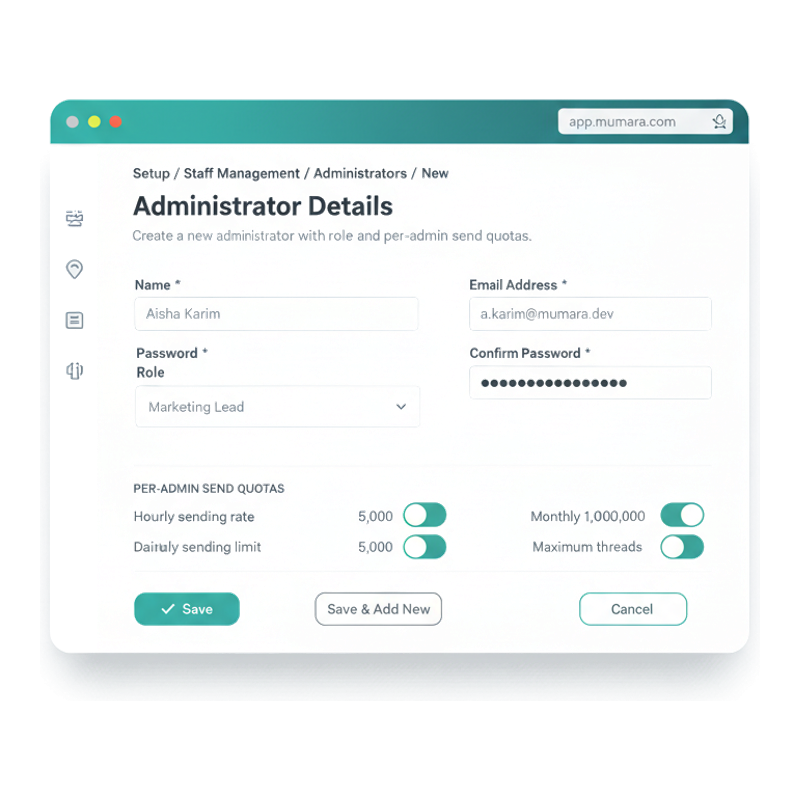
The Administrator Details surface — everything an admin is, on one screen.
Adding an administrator is a single form: name, email address, password, role. Beneath the identity fields, per-admin send-quota toggles let you cap an admin's outbound throughput independently — hourly rate, daily limit, monthly limit, maximum threads. Leave a toggle OFF to inherit the platform default; flip it ON to override per admin. The simplest setup is the identity fields plus a role; the most-tuned admin gets the same form with capacity caps dialled in.
-
Per-admin send-quota caps
Toggle hourly, daily, monthly limits and maximum-threads per admin. Capacity caps only — they shape how much an admin can send through, not what data the admin can see. Data scope stays global, decided by the role's permissions.
-
Role chosen at create-time
Every admin is assigned a role — Super Administrator or any custom role you've built in the role tree. The role's permissions decide what the admin can do once they sign in. Reassign roles from the same form whenever the staff member's responsibilities change.
-
Password set up front
You set the initial password; the admin is prompted to change it on first sign-in (and to enable 2FA if their role requires it). The Authentication audit log captures the password-set event with timestamp and IP.
-
Save & Add New for fast onboarding
When you're provisioning multiple admins at once — a team joining, a reseller's staff onboarding — Save & Add New skips the list-view round-trip and keeps you in the form for the next admin.
Roles · the permission blueprint
Pick the actions, not the title.
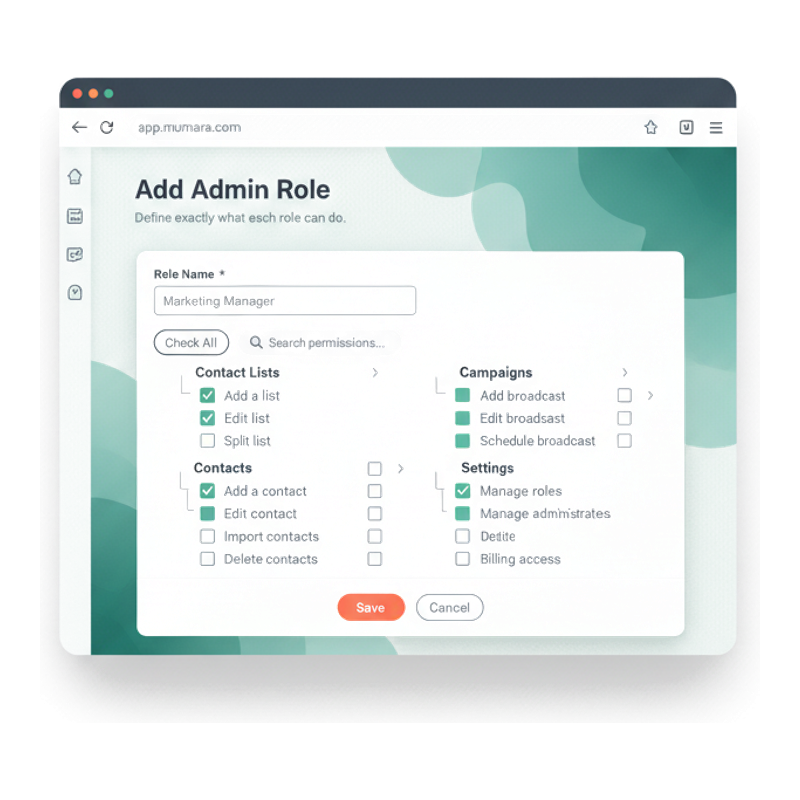
Mumara's role builder is a tree of permissions across every platform area — Contact Lists, Contacts, Custom Fields, Segmentation, Suppression, Broadcasts, Drip Campaigns, Triggers, Split Tests, Sending Domains, Sending Nodes, Bounce Addresses, Bounce Rules, Web Forms, Statistics, Tools. Tick the actions this role can perform; untick the rest. Save once, assign to as many administrators as need it. When the role definition changes, every administrator in that role inherits the change immediately.
-
Permissions apply globally
Tick a permission on a role and every admin in that role sees the scope of that permission across the whole installation — every list, every contact, every broadcast, every user's data. The role decides what the admin can do; the admin tier itself decides the data scope is global. Users, by contrast, are always hard-scoped to their own data.
-
Hierarchical tree
Parent nodes (Contact Lists, Contacts, Campaigns, Sending, Settings, Tools) expand to show every action inside. Mix-and-match — a Marketing role manages broadcasts and segments but never touches sending nodes; a Deliverability role configures sending domains and bounce rules but never reads contact data.
-
Searchable permissions
The role builder has a Search input. With the platform's growing set of granular actions, searching beats scrolling — type "delete" to find every destructive permission at once and untick the lot for an auditor role.
-
"Check All" for power roles
One click ticks every permission for the role — the convenience of a Super-Administrator-equivalent without the keyword. Conversely, start with everything unticked and add only what the role genuinely needs for a true least-privilege build.
-
Reusable
Define a role once, assign to many admins. When you onboard the third Compliance Officer, you pick the existing Compliance Officer role — no rebuild. When a permission is added or revoked in the role, every admin in it inherits the change.
Onboard a new admin
From zero to scoped, in minutes.
The path every new administrator follows — from the first form to the first audited action. Nothing waits on engineering.
-
Step 1
Add the admin
On Administrators → + Add New, fill Name, Email Address, Password, Confirm Password. The admin gets sign-in instructions on save.
-
Step 2
Pick or build the role
Assign an existing role (Super Administrator, Marketing Lead, Compliance Officer, Deliverability Lead) or build a new one in the role tree before saving.
-
Step 3
Set per-admin quotas
Toggle Hourly sending rate, Daily sending limit, Monthly sending limit, and Maximum threads — each can be set per-admin or left to the platform default.
-
Step 4
Enforce 2FA
When the role requires 2FA (most should), the admin sets up TOTP — Google Authenticator or compatible — on first sign-in. The 2FA addon adds the underlying support.
-
Step 5
Audit and adjust
Every sign-in and every admin action is logged. Tools → Authentication Logs answers "who did what, from where, when". Change the role, revoke access, or rotate password at any time.
Who uses the admin surface
One Administrators page. Many shapes of team.
-
Internal marketing team
- Setup
- A team of teammates with overlapping responsibilities — broadcasts, automations, reporting — historically logging in as one shared admin account. This is the most common Mumara setup: company uses it for its own sending, gives the team admin accounts with role privileges.
- Outcome
- Each teammate gets their own admin login, their own role, their own send-quota caps. The audit log restores the answer to "who scheduled that broadcast" — at zero cost. No User Management needed; Personal or Professional plan covers this entirely.
-
Agency / reseller staff (Commercial+)
- Setup
- An agency running Mumara on behalf of clients. The agency's own staff need to operate across every client account; the clients themselves need isolation from each other's data.
- Outcome
- The agency's staff get Administrator accounts — global data scope so they can see and act on every client's lists, broadcasts, and statistics. The clients each become a User (Commercial+ feature), hard-scoped to their own data. Same installation, two-tier hierarchy.
-
Compliance / security review
- Setup
- A Compliance Officer needs to read contact data, review broadcast content, and audit access logs — but should not edit campaigns or manage billing.
- Outcome
- Build a read-only Compliance Officer role: every read permission ticked, every write permission unticked. Assign the role; the auditor sees everything across the installation, changes nothing. Global data scope is exactly what makes this role possible.
-
Clean offboarding
- Setup
- A teammate leaves. With a shared admin password, you would change the password and email it to everyone else — and the audit trail stays broken.
- Outcome
- Delete the leaver's admin account. Done. Every other admin keeps their own credentials, their own roles, their own audit history. No ripple effect. The shared-password failure mode is solved at zero ongoing cost.
Common questions
What buyers usually ask.
What's the difference between an Administrator and a User?
Data scope and use case. An Administrator is a staff account — an admin with a permission sees that permission's data across the whole installation, including data owned by every User beneath them. A User is a tenant — hard-scoped to their own data (their own lists, contacts, broadcasts), with no visibility into another user's records regardless of permissions. Admins are how you give your own team access; Users are how you isolate someone else's account on your installation. User Management is a Commercial-plan feature for resellers, agencies, and white-label SaaS setups — Personal and Professional plans only have Administrators, which is what most internal-use customers need. See [Team & Users](/campaigns/features/user-management/) for the full hierarchy.
If I give an admin "View Contact Lists" permission, do they see all lists in the system?
Yes. Every admin permission is global by default — the admin sees every list on the installation, including lists created by other admins and lists owned by every User beneath the admin tier. This is the defining behaviour that makes someone an admin in the first place. If you need a teammate to see only a subset of data, you have two options: (1) build a role that simply doesn't include the read permission for that section, or (2) create them as a User instead of an admin — Users are hard-scoped to their own data with no exceptions. Most teams pick option 1; resellers and agencies pick option 2 for their client accounts.
How many administrators can I have?
There's no built-in cap on the number of administrators per installation. Add as many as your team structure needs — each one is a real account with its own login, role, send quotas, and 2FA. Authentication logs scale with the admin count; the role builder doesn't slow down with more administrators in a role.
How granular are admin roles?
Very. The role tree exposes every action across the platform — Contact Lists (add / edit / split / merge / move contacts / delete / delete bulk), Contacts (add / view / edit / import / export / bulk update / delete), Custom Fields (add / edit / delete), Segmentation (add / edit / schedule / export / copy / move), Suppression (per-type per-action), Broadcasts (add / edit / schedule / re-schedule / copy / delete), Drip Campaigns, Triggers, Sending Nodes (per-gateway-type), Bounce Addresses, Web Forms, Statistics (per-campaign-type per-tab), Tools, and more. Tick any combination. Use 'Check All' for power roles or build minimal-permission read-only auditor roles. Each role can be reused across as many administrators as need it.
How do per-admin send quotas work?
Each administrator has optional capacity-cap toggles — Hourly sending rate, Daily sending limit, Monthly sending limit, Maximum threads, plus any additions the platform adds over time. Toggle ON to set a per-admin override; toggle OFF to inherit the platform default. These are throughput caps only — they shape how much an admin can send through, not what data the admin can see. Useful when one admin handles bulk broadcasts and another handles low-volume transactional from the same installation; cap the bulk admin to protect the queue without restricting the rest.
Can I enforce 2FA across all admins?
Yes. 2FA is enableable per role (so a Compliance Officer role can require 2FA while a Read-only Auditor role doesn't), per administrator (force a specific admin to enable 2FA on next sign-in), or platform-wide. The Administrators list shows 2FA status per admin so you can spot stragglers. The 2FA addon adds the underlying Google-Authenticator-compatible TOTP support.
Are admin actions logged?
Yes — every sign-in, sign-out, and admin action is logged. Tools → Authentication Logs lists ID, name, IP address, activity type, details, and timestamp. Indispensable for compliance reviews, security incident investigation, and answering 'who changed this, when, and from where'. The log is retained for the platform-default retention window; export it for longer-term storage if your compliance regime requires.
Can roles be edited after admins are assigned to them?
Yes — the role is a live blueprint, not a copy. When you tick or untick a permission on the role, every administrator in that role inherits the change immediately. No need to re-save each admin. This is why reusable roles are the lever: change the role once, the change propagates everywhere.
What if I want a single Super-Administrator role with everything ticked?
That's the default. Every Mumara Campaigns installation ships with a Super Administrator role that has every permission ticked. The first admin you create on a fresh install is Super Administrator. You can build additional Super-Administrator-equivalent roles using 'Check All' if you want a distinct name for organisational reasons.
Can I scope an admin to specific lists or campaigns?
Admin permissions are global — when an admin can read lists, they can read every list. Action-level scoping covers most needs (a Marketing Lead can have Add Broadcast and Edit Broadcast but not Delete Broadcast), but you can't restrict an admin to a subset of lists or campaigns inside the same section. For genuine resource-level isolation — admin A only touches the 'Newsletter' list, admin B only touches 'Transactional' — model them as Users with their own Package, not as admins. Users are hard-scoped to their own data with no exceptions. See the Team & Users page for the User hierarchy.
Related
Pages that pair with this one.
-
Team & Users
The broader hierarchy — Administrators plus Users, Packages, IP allowlists, and Force-DKIM controls.
Read more -
Two-Factor Authentication
TOTP 2FA per role — Google-Authenticator compatible, audit-log integrated. Addon.
Read more -
White Labeling
Replace Mumara branding with yours across the admin tenant. Addon.
Read more -
Swift Sending
Per-admin send-quota caps are enforced at the sending layer — the admin's throughput is capped, the data they see stays global.
Read more -
Reporting & Analytics
Admins see all data by default; role permissions can scope reporting access per-section.
Read more -
Suppression Management
Per-role suppression permissions — control who can add to and remove from the suppression layer.
Read more
Mumara Campaigns · Administrators
Multi-admin out of the box. No shared passwords. Full audit trail.
Administrators ship with every Mumara Campaigns plan — Personal, Professional, Commercial, and Mumara Machine. Reusable roles, granular permission tree, per-admin send-quota caps, and authentication logs are all included. The 2FA addon adds Google-Authenticator support. User Management (multi-tenant Users with hard data isolation) is a separate Commercial+ feature for resellers and agencies.