Skip to content
Mumara

Content · Commercial · gallery + upload

A gallery of pre-designed templates. A path to upload your own.

The Templates Gallery installs Mumara-designed templates by category — Business, Newsletter, Ecommerce, Invoice, Healthcare, and more. Upload your own custom designs as ZIP packages with a fixed structure. Pick a template at broadcast creation — works with the HTML Editor or the Drag & Drop Builder addon. Commercial-licence feature.

  • Templates Gallery — install pre-designed templates by category
  • Upload Template — ZIP packages with fixed structure
  • Update Templates — re-sync to latest versions
  • Two visibility toggles — Status + Enable for Users
templates gallery
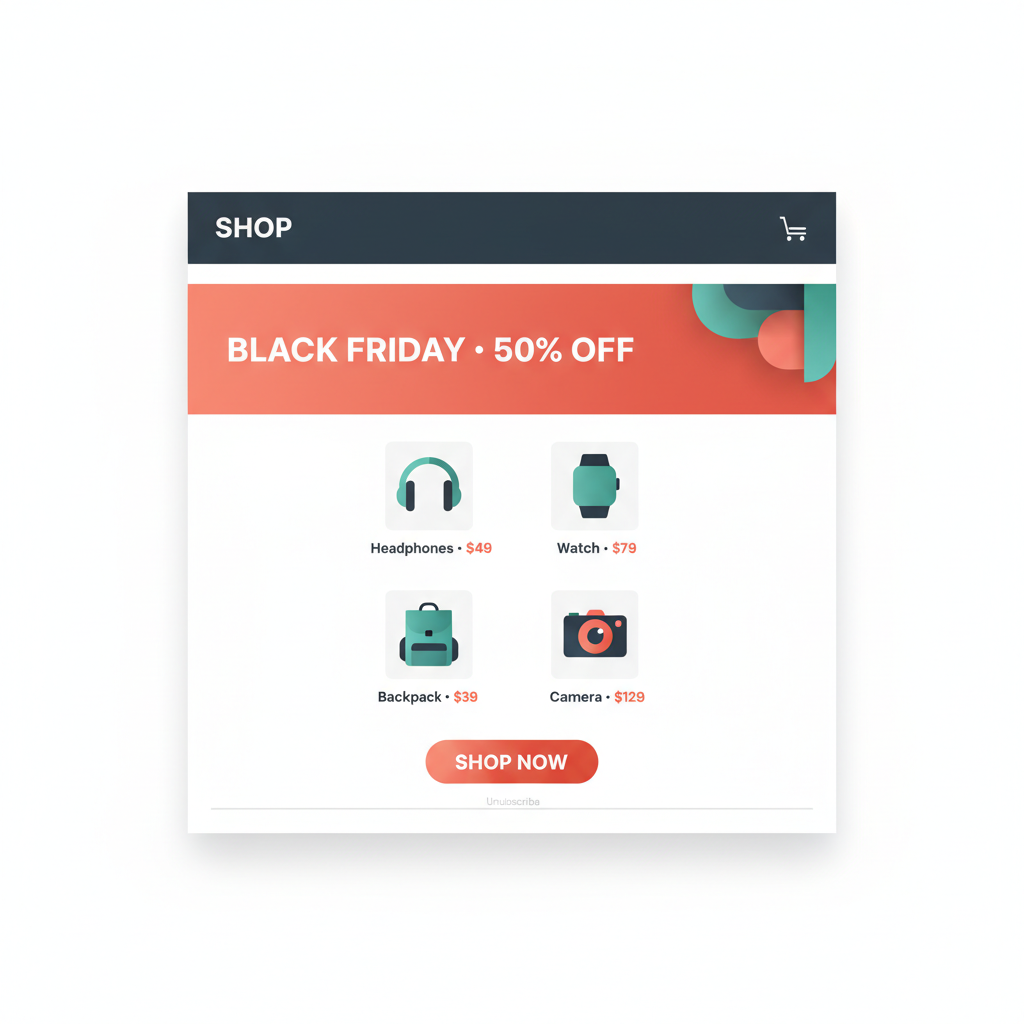
Featured email template — SHOP header with cart icon, BLACK FRIDAY 50% OFF banner, 2x2 product grid with Headphones, Watch, Backpack, Camera, SHOP NOW coral CTA

Black Friday · Ecommerce

Featured · pre-designed

Ecommerce
Business · Newsletter · Ecommerce · Invoice · Healthcare… Browse all

Three ways templates flow in

Gallery, upload, or sync.

Mumara Email Templates work three ways. Install pre-designed templates from the curated Gallery. Upload your own custom designs packaged as ZIP files. Re-sync existing templates to the latest versions when Mumara updates them upstream.

Templates Gallery

Setup → Email Templates → Templates Gallery. Browse Mumara's curated collection by category, search by name, preview full-size before installing. Click Install on any card and the template lands in your Broadcast Templates list. Already-installed templates show an Installed badge so you don't double-install.

Upload Template

Setup → Email Templates → Upload Template. Upload your own design as a ZIP file with a fixed structure — index.html, header.html, footer.html, thumbnail.png, template.json at the ZIP root. Mumara validates the structure, extracts files, rewrites relative image / CSS paths to absolute URLs, and the template becomes available to broadcasts immediately.

Update Templates

Setup → Email Templates → Update Templates. Re-sync all installed templates with the latest versions from Mumara's server. Runs in the background; existing template settings (Status, Enable for Users) are preserved. Useful when Mumara updates a template you have installed and you want the improvements.

Organised by category

A category for whatever you're about to send.

Every template carries a category in its template.json. The gallery dropdown filters by category; the search box layers on top to find templates by name, keyword, or tag. Build your own categories on uploaded templates — the system uses whatever you put in the metadata.

  • Business
  • Newsletter
  • Ecommerce
  • Discount
  • Notification
  • Invoice
  • Magazine
  • Healthcare
  • Electronics
  • Congratulate
  • Order List
  • Newspaper
  • Chat
  • Honeypot
  • + your own

Categories shown are representative of the current Gallery. Mumara adds new categories as templates land. Custom uploads define their own category in template.json — anything you write becomes a filterable category.

The two visibility toggles

Status is for the system. Enable for Users is for the team.

Each template has two switches. They look similar but serve different purposes — and the difference matters when you're running a multi-User installation where Admins curate which templates non-Admin Users can see.

Status is the master switch. When OFF, the template is inactive across the entire installation — nobody (not Admins, not Users) sees it in the broadcast creation flow. Use Status OFF to retire stale templates without deleting the file (preserves the option to re-enable later). Status ON makes the template active.

Enable for Users is the User-visibility switch. When OFF (default), the template is visible only to Admins. When ON, the template becomes visible to non-Admin Users when they create broadcasts. Admins always see all active templates regardless of this toggle; the toggle only gates User-level visibility.

For a template to appear to a User during broadcast creation, BOTH switches must be ON. This lets Admins curate a smaller, vetted set of templates for User-facing broadcast creation while keeping a larger Admin-only library. Templates marked 'Enable for Users' show an Assigned badge in the User's gallery view, signalling 'you can use this but only Admin can edit/delete it'.

Custom upload · the ZIP package

Upload your own designs. Five required files at the ZIP root.

Custom template uploads use a fixed ZIP structure. Five required files at the root, optional asset folders below. The platform validates the structure on upload, extracts files to storage, and rewrites relative image and CSS paths to absolute URLs automatically.

ZIP STRUCTURE my-template.zip
my-template.zip
├── index.html         # Required · main email body
├── header.html        # Required · <head> + opening <body>
├── footer.html        # Required · closing tags
├── thumbnail.png      # Required · gallery preview
├── template.json      # Required · metadata
├── images/             # Optional · referenced via src="images/…"
│   ├── logo.png
│   ├── banner.jpg
│   └── …
├── css/                # Optional · referenced via href="css/style.css"
│   └── style.css
└── blocks/             # Optional · reusable D&D Builder blocks
    └── Content 1/
        ├── block.html
        └── img/
METADATA template.json
{
  "name": "Business Promotion",
  "short_description": "A clean business email",
  "description": "Professional template with hero banner, content sections, and CTA buttons.",
  "category": "Business",
  "keywords": "business, promotion, professional",
  "tags": ["business", "promotion"],
  "version": "v1",
  "status": 1
}

Only name is required. Other fields default sensibly when missing. The platform auto-injects id, user_id, date, thumbnail, and show_to_user on upload.

Validation: all five required files must be at the ZIP root — not nested in a subfolder. The platform rejects uploads where template.json is one level deep. Relative src="images/…" and href="css/…" paths in your HTML get rewritten to absolute URLs automatically; externally hosted images need valid absolute URLs.

Why pre-designed templates earn their keep

Templates make broadcast creation a 30-second choice, not a 30-minute build.

Templates aren't about replacing custom design work — they're about giving senders a tested starting point for the 80% case. Pick a category, pick a template, edit the content. Most broadcasts don't need to be designed from scratch.

Gallery library
Curated
Gallery library
Mumara-designed templates organised by category — Business, Newsletter, Ecommerce, Invoice, Healthcare. Browse, preview, install in one click.
custom ZIP packages
Upload
custom ZIP packages
Fixed structure: 5 required files at ZIP root. Validation on upload. Relative image + CSS paths rewritten to absolute URLs automatically.
visibility control
Two toggles
visibility control
Status (system-wide) + Enable for Users (per-User visibility). Admins curate a vetted set for their Users.
works with HTML, D&D, AI
Editor-agnostic
works with HTML, D&D, AI
Pick a template at broadcast creation. Open in HTML Editor or D&D Builder. AI Builder skips template step (generates from scratch).

Broadcast creation with a template

From Add New to ready-to-edit in four clicks.

The template picker lives inside the broadcast creation flow. Pick the editor, pick the template, edit the content. The platform routes you to the right editor with the template's content already loaded.

  1. Step 1

    Add New Broadcast

    Broadcasts → + Add New. The editor-selection screen appears with HTML Editor, Drag & Drop Builder (addon), and AI Builder options. AI Builder skips templates (generates from scratch); the other two reveal the template gallery.

  2. Step 2

    Choose Your Editor

    Click HTML Editor or Drag & Drop Builder. The template gallery slides in below — a Start Blank card plus every Status-enabled template visible to your role (Admins see all; Users see only Enable-for-Users-toggled templates).

  3. Step 3

    Pick a Template

    Browse by category dropdown, search by name / keyword / tag, or click the eye icon for a full-size preview. Hover a card and click Use This to select it — or click Start Blank to start from scratch with no template content.

  4. Step 4

    Editor Opens with Content

    The platform creates a draft broadcast with the template content loaded and routes you to your chosen editor. Edit the content as a normal broadcast — every Custom Field merge tag, Spintax tag, and Dynamic Content Tag works inside template-based broadcasts.

  5. Ongoing

    Send · Reuse

    Each broadcast gets its own COPY of the template at creation time — future edits to the template don't change broadcasts already created. The original template stays clean in the library; broadcasts customise without affecting the source.

What templates save you from

The cost of designing every broadcast from a blank canvas.

Every broadcast you build from scratch is a chance to make a typo, miss a compliance marker, break responsive layout, or burn an afternoon on something that wasn't going to differentiate anyway.

  • Designing every email from scratch burns time without ROI

    The third 'monthly newsletter' broadcast you build from scratch looks 95% like the first two — you're recreating the same structure each time. A Newsletter template captures the structure once; future newsletters become content edits, not design exercises.

  • Inconsistent design across broadcasts damages brand recognition

    When every broadcast looks slightly different — slightly different button colour, slightly different header, slightly different footer — recipients learn NOT to recognise your sends. Templates lock the brand-identity elements in place; content variation happens inside a consistent frame.

  • Compliance markers get forgotten in custom builds

    Unsubscribe link, physical address, View in Browser link, sender name — every broadcast needs them. Templates bake them in; a Start-Blank custom build risks forgetting one and triggering a compliance issue.

  • Untrained Users build broken layouts

    When non-Admin Users build broadcasts from scratch, the result is often responsive-layout broken on mobile, with inline CSS that conflicts with Gmail's processor. Templates that survived QA give Users a known-good starting point — the layout works because someone tested it.

“We have one 'House Newsletter' template that every issue of every client's newsletter starts from. Built it once, made it bulletproof, marked it Enable for Users across the team. New newsletters are a content edit, not a build. We've shipped probably 200 newsletters from that one template.”

Verified review

Mumara customer

Trustpilot

Common questions

What buyers usually ask.

Do I need a Commercial licence for Email Templates?

Yes. The Templates Gallery and the Email Templates management surface are Commercial-licence features per the platform docs. Personal and Professional plans have Broadcasts and the editors but not the Templates Gallery or custom-upload surface. If you're on Personal / Professional, you can still build broadcasts from blank — you just won't have the pre-designed library to start from.

What's the difference between a Template and a Broadcast?

A Template is a reusable design that lives in the library. A Broadcast is a single campaign — it copies template content at creation time, then becomes its own independent record. Editing the template later doesn't affect broadcasts already created from it; editing a broadcast doesn't change the template. One template can spawn many broadcasts.

Can I edit a Mumara-Gallery template after I install it?

Yes — the Edit Template action opens an HTML editor modal with syntax highlighting. Modify the HTML, save, and the changes apply to FUTURE broadcasts using this template. Existing broadcasts already created from the template are unaffected (each has its own copy from creation time). Re-syncing via Update Templates will overwrite your edits with the upstream Mumara version, so keep a backup if you've heavily customised.

How do I make a template visible to my Users?

Two toggles must both be ON: Status (master switch — must be on for anyone to see the template) AND Enable for Users (User-visibility switch — must be on for non-Admin Users to see it in their broadcast gallery). Admins always see all Status-enabled templates regardless of Enable for Users; the toggle gates User-level visibility only. Useful for curating a smaller vetted set for non-technical Users.

Can I use Custom Fields and Spintax inside a template?

Yes — every template renders as a broadcast, so all personalization syntaxes work. Embed [Custom Field merge tags](/campaigns/features/custom-fields/) (%%first_name%%), [Spintax](/campaigns/features/spintax/) ({{tag}} or [a|b|c]), and [Dynamic Content Tags](/campaigns/features/dynamic-content-tags/) ([[block]]) directly in the template HTML. They resolve at send time per recipient just like in any other broadcast.

What if my upload fails validation?

Most upload failures come from one of: a required file missing (verify all five — index.html, header.html, footer.html, thumbnail.png, template.json — are at the ZIP ROOT, not in a subfolder), the ZIP isn't a real ZIP (use a proper compression tool, not a renamed folder), the file extension isn't .zip. The platform reports which validation failed; re-zip after fixing.

Does the Drag & Drop Builder addon affect templates?

Yes. When the [Drag & Drop Builder addon](/campaigns/addons/drag-and-drop-builder/) is installed and active, the platform merges header.html + index.html + footer.html into a single combined index.html for D&D Builder compatibility during upload. Templates uploaded after the addon is installed work in both the HTML Editor and the D&D Builder; templates uploaded before the addon was installed may need re-upload to get the merged structure.

Where do template image paths point?

Inside the template HTML, use relative paths: src="images/logo.png", href="css/style.css". On upload, the platform rewrites these to absolute URLs pointing at the template's storage location. So the rendered HTML in the editor and the sent email has absolute URLs; your source ZIP uses relative paths for portability.

Can I delete a template that has been used in broadcasts?

Yes — deleting the template doesn't affect broadcasts already created from it (they have their own copies). The template is removed from the library so it can no longer be selected for new broadcasts. If you want the template available for future reference without exposing it to new broadcasts, toggle Status OFF instead of deleting — the template stays in the library inactive.

How often does Mumara add new gallery templates?

Mumara adds new templates to the Gallery on an ongoing basis. The Update Templates button on Setup → Email Templates re-syncs your installed templates to the latest server versions — useful when Mumara has updated a template you already installed (bug fix, responsive improvement, accessibility tweak). To see brand-new templates, visit the Gallery directly and look for ones without the Installed badge.

Mumara Campaigns · Email Templates

A gallery to install from. A path to upload your own.

Email Templates ship with Commercial-tier Mumara Campaigns and above — Self-Hosted and Mumara Machine. Browse the Gallery, upload your custom designs, manage visibility with two toggles, pick a template at broadcast creation. The starting-point library that makes every broadcast a content edit, not a design exercise.